In some cases, you may need to change the resolution of your Remote Desktop. In this article, you will learn How to change Remote Desktop Resolution in Windows, macOS, Android, and Linux.
How to change Remote Desktop Resolution in Windows
If you have a Windows Operating system (7,10, etc), you will have the Remote Desktop Connection application installed on the system.
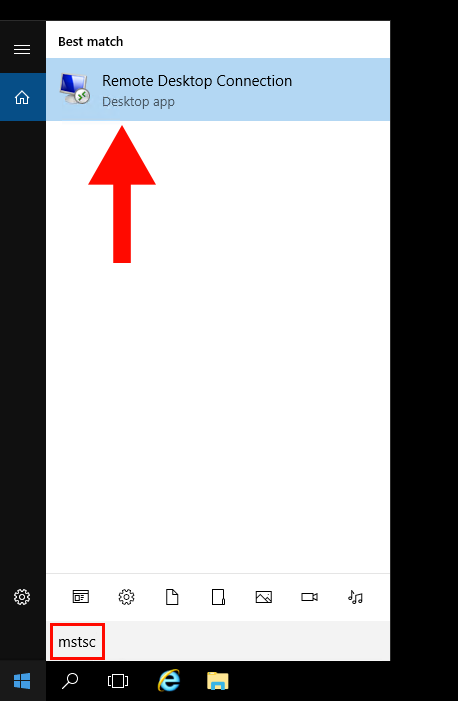
1. Get started by searching Remote Desktop Connection or mstsc in the search box.
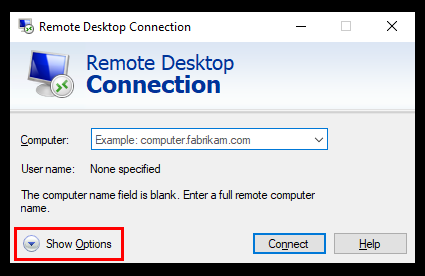
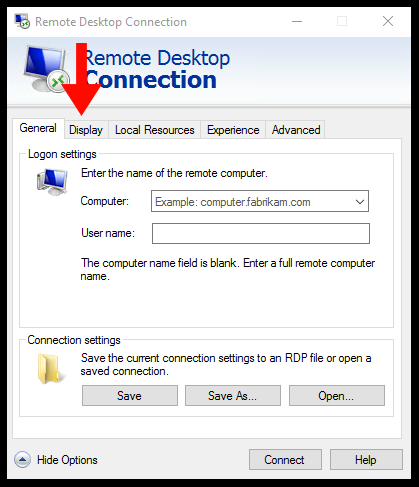
2. Click on Show Options.
3. Next, click on Display.
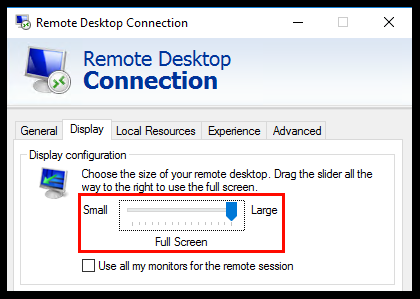
4. By using the slider in the Display configuration, you can set a custom resolution of the Remote Desktop.
How to change Remote Desktop Resolution in macOS
Please follow this guide if you already have an existing Remote Desktop profile. If not, please follow How to Connect to Windows VPS using RDP to save a Remote Desktop profile.
1. Open the Remote Desktop application on your macOS device.
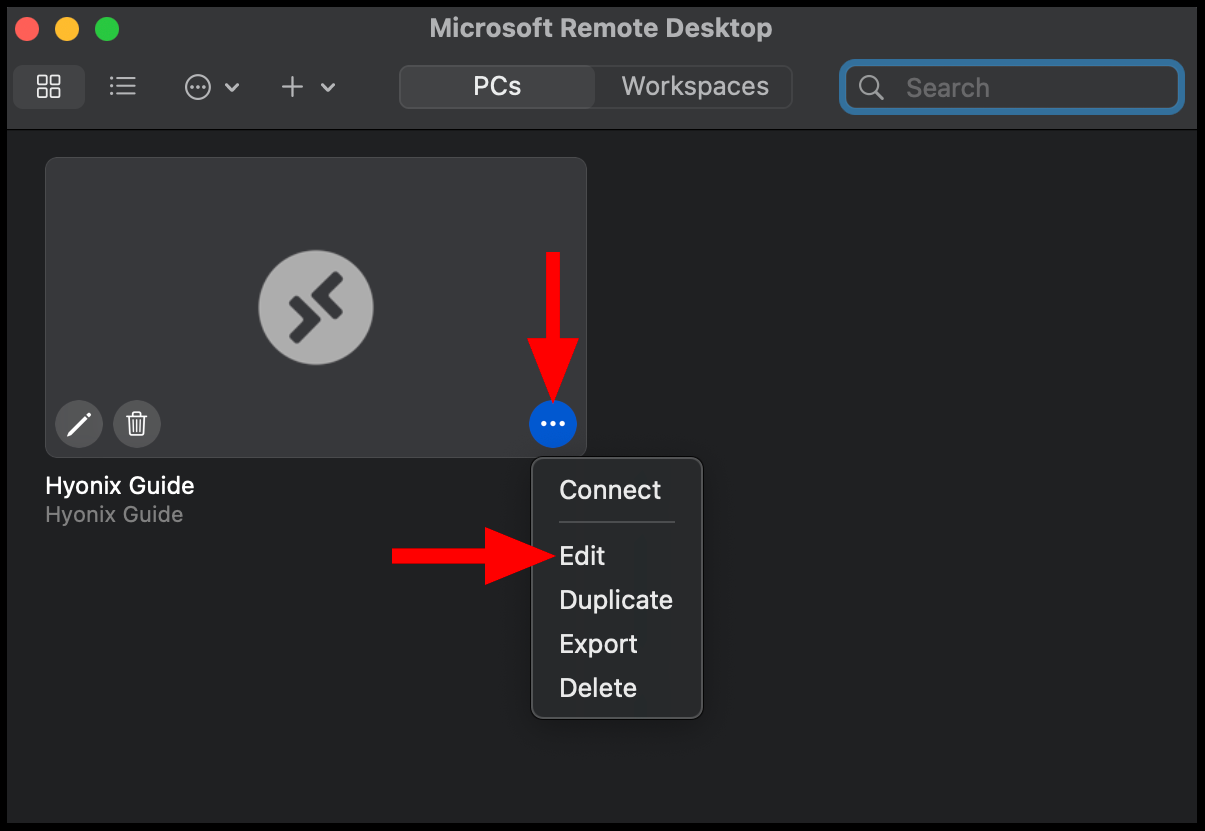
2. Once Remote Desktop is open, click the ••• button and select the Edit option.
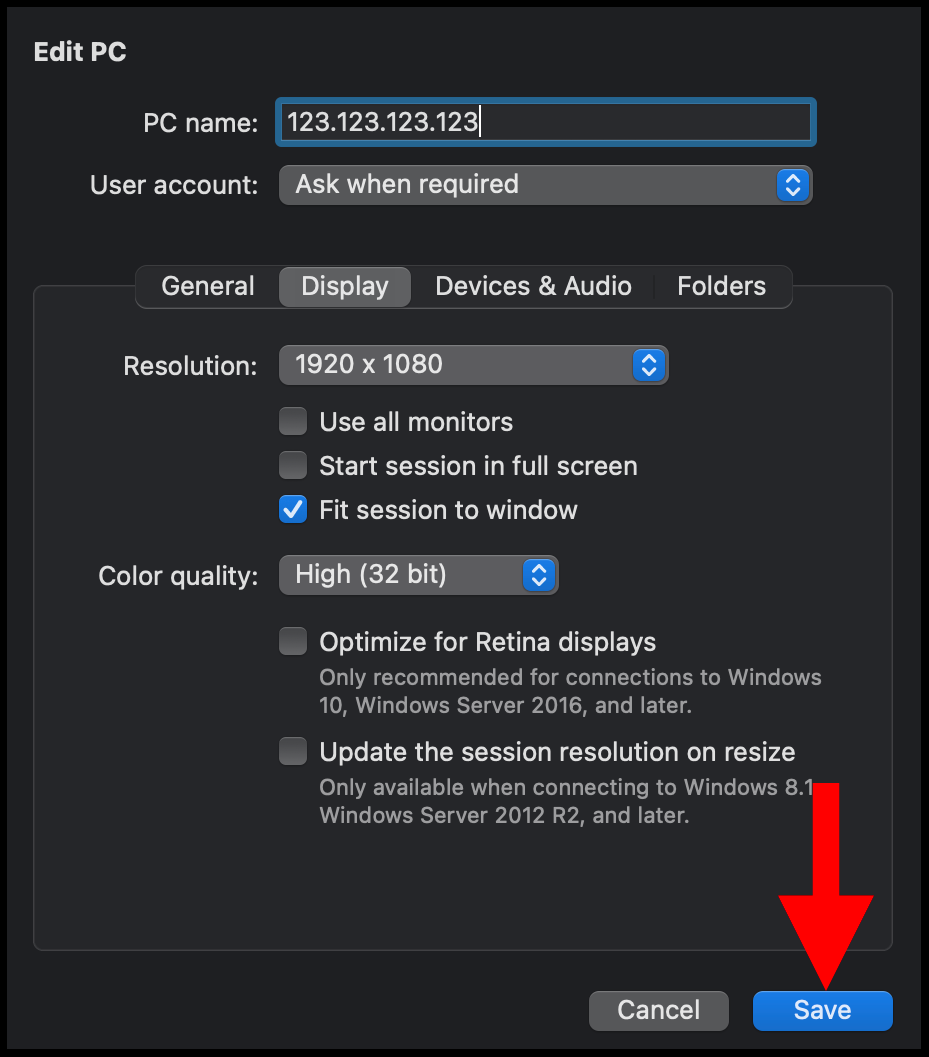
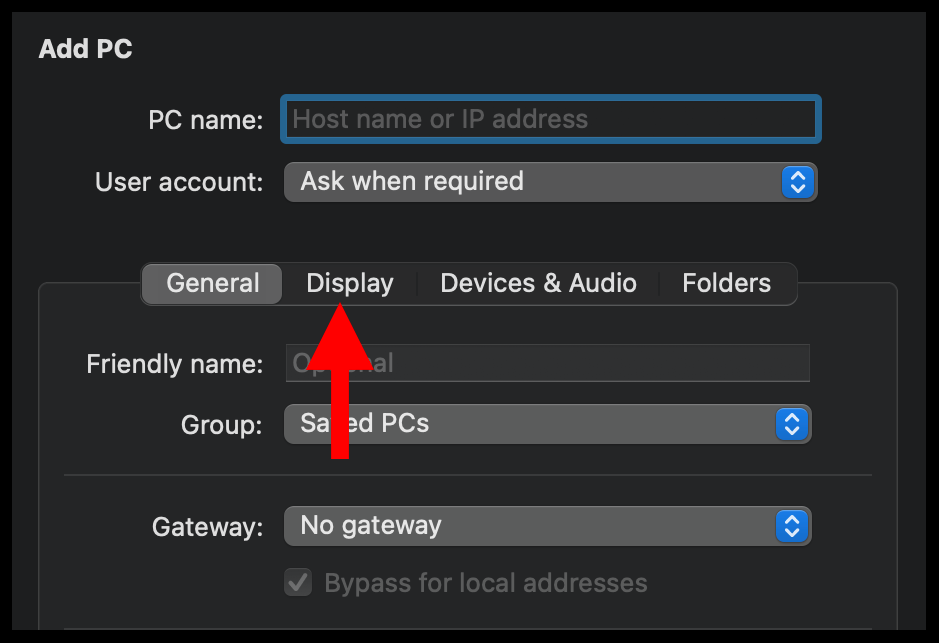
3. Then, navigate to the Display option.
4. Make sure the Use all monitors option is unchecked to set the custom screen resolution for the Remote Desktop.
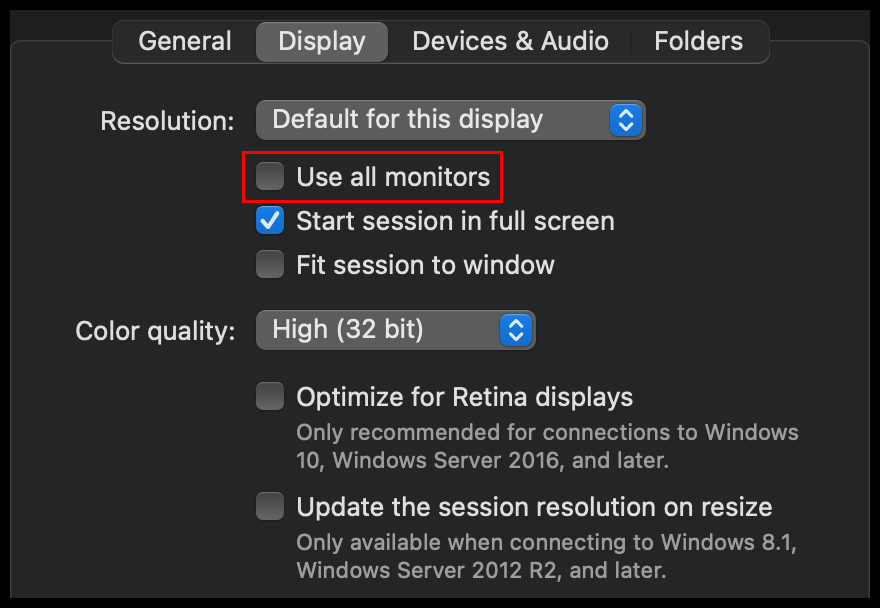
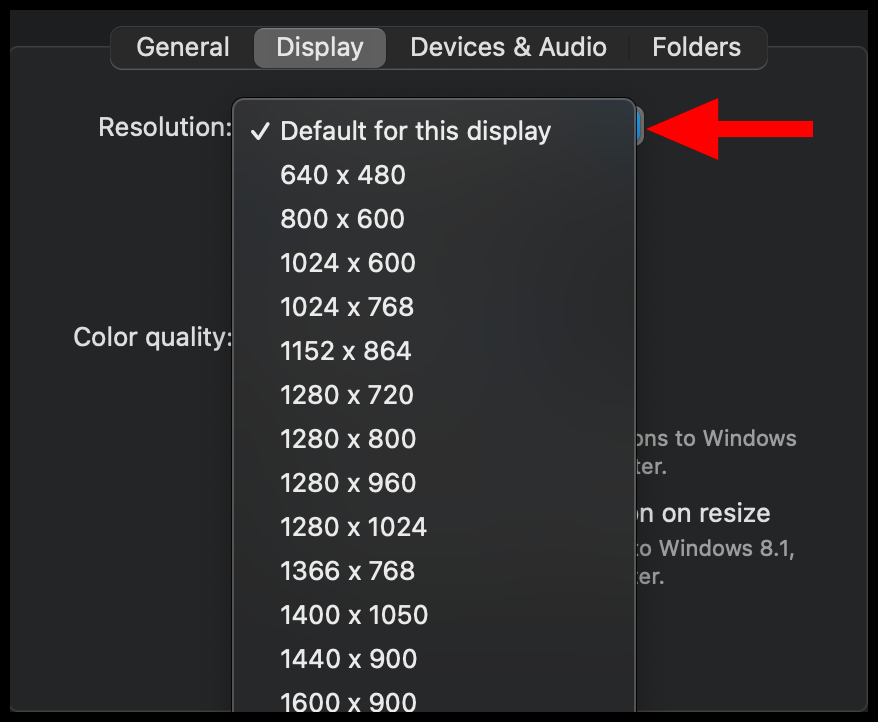
5. Now, click Default for this display and select a custom resolution setting from the dropdown menu.
6. Lastly, click on Save to ensure your resolution setting is saved.