
Эта инструкция подойдёт для начинающих пользователей. В ней показано, как отключить брандмауэр Windows через редактор локальной групповой политики.
Важно: для выполнения этих действий нужны права администратора.
- Нажмите клавиши Win + R на клавиатуре.
- В появившемся окне введите:
gpedit.msc - Нажмите Enter.
- Откроется окно Local Group Policy Editor.
- В левой части окна перейдите по следующему пути:
Computer Configuration → Administrative Templates → Network → Network Connections → Windows Defender Firewall → Domain Profile - В правой части окна найдите параметр:
Windows Defender Firewall: Protect all network connections - Откройте этот параметр двойным щелчком мыши.
- Выберите значение Disabled.
- Нажмите Apply, затем OK.
- После этого в левой части окна перейдите в раздел:
Computer Configuration → Administrative Templates → Network → Network Connections → Windows Defender Firewall → Standard Profile - Снова найдите параметр:
Windows Defender Firewall: Protect all network connections - Откройте его двойным щелчком мыши.
- Выберите значение Disabled.
- Нажмите Apply, затем OK.
- Чтобы изменения вступили в силу, откройте командную строку от имени администратора и выполните команду:
gpupdate /force - Если нужно, перезагрузите сервер или компьютер.
Примечание: если редактор gpedit.msc не открывается, возможно, эта функция недоступна в вашей версии Windows.
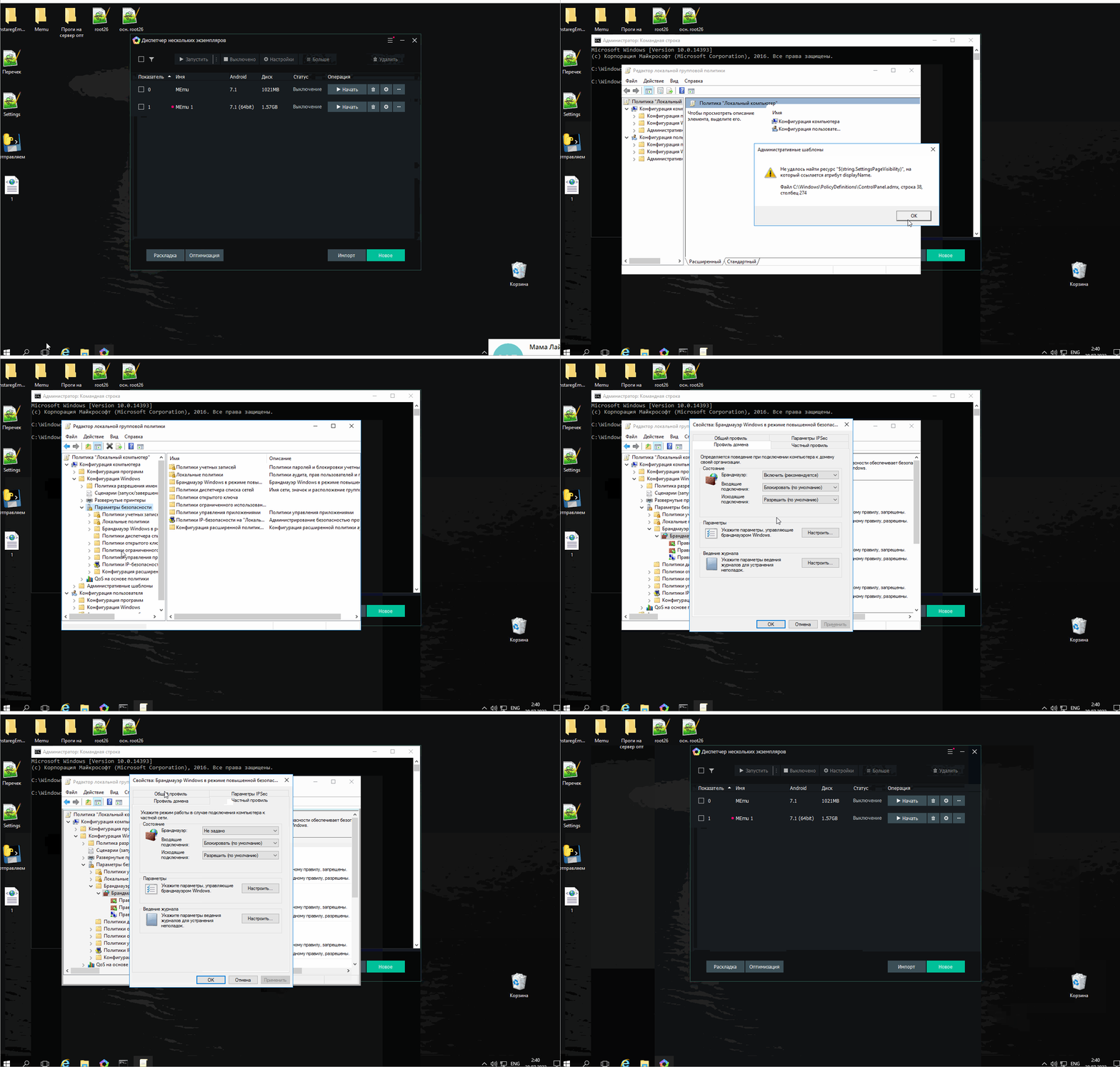
How to Disable Windows Firewall via gpedit.msc
This guide is written for beginners. It explains how to disable Windows Firewall using the Local Group Policy Editor.
Important: administrator privileges are required to complete these steps.
- Press Win + R on your keyboard.
- In the Run window, type:
gpedit.msc - Press Enter.
- The Local Group Policy Editor window will open.
- In the left panel, go to the following path:
Computer Configuration → Administrative Templates → Network → Network Connections → Windows Defender Firewall → Domain Profile - In the right panel, find the setting:
Windows Defender Firewall: Protect all network connections - Double-click this setting to open it.
- Select Disabled.
- Click Apply, then click OK.
- After that, in the left panel go to:
Computer Configuration → Administrative Templates → Network → Network Connections → Windows Defender Firewall → Standard Profile - Find the same setting again:
Windows Defender Firewall: Protect all network connections - Double-click it to open.
- Select Disabled.
- Click Apply, then click OK.
- To apply the changes, open Command Prompt as Administrator and run:
gpupdate /force - If needed, restart the server or computer.
Note: if gpedit.msc does not open, this feature may not be available in your Windows edition.